Error pages are displayed when a user enters a wrong/outdated URL or when one is not authorized to access a specific directory of your web space. cPanel allows you to customize the default view and adjust the way the error is displayed:
1. Log into your cPanel.
2. Navigate to Advanced section > Error Pages menu:

3. Select the domain name in from Managing drop-down menu and click on the error you wish to change:
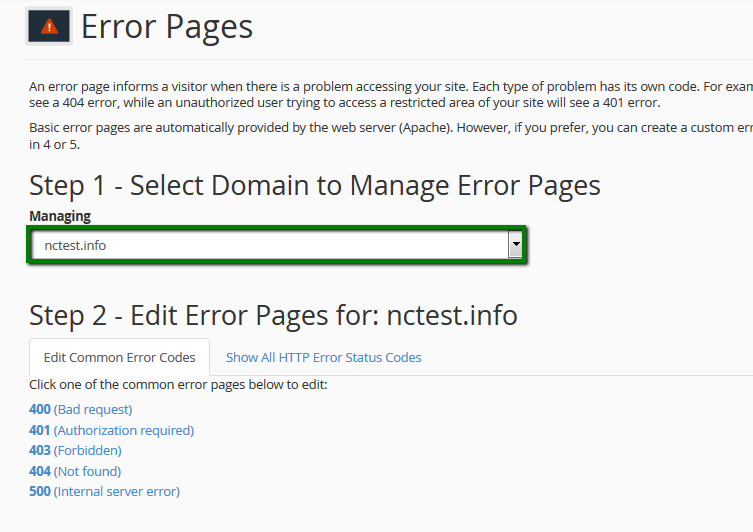
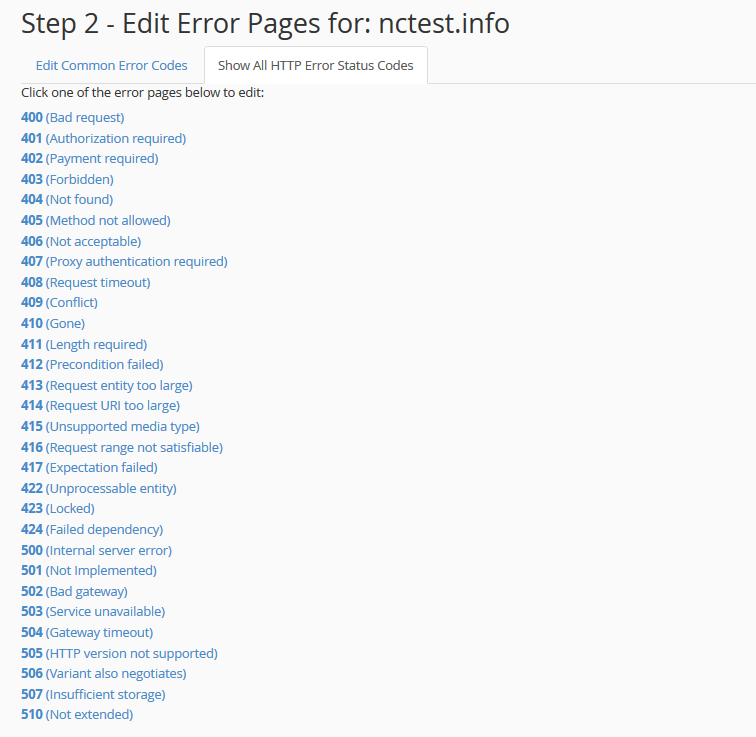
If you cannot find the needed error code in Edit Common Error Codes tab, switch to Show All HTTP Error Status Codes:
4. Once the error code is selected, you will be taken to HTML editor that provides the following tags:
- Requested URL: displays the intended URL the visitor is trying to view.
- Server name: displays the web site's server name.
- Visitor's browser: displays the visitor's browser type such as Internet Explorer, FireFox, Netscape, etc.
- Redirect Status Code: displays the type of code in the 300-307 range.
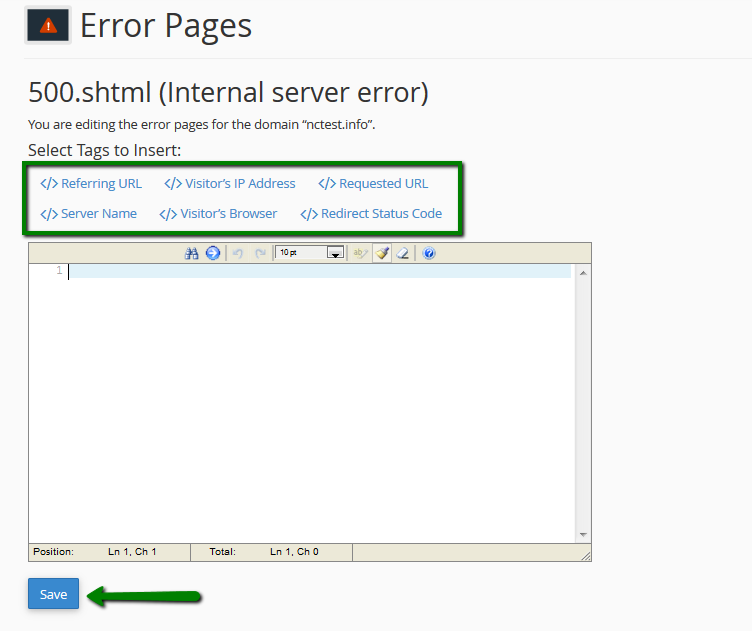
Make sure that you Save the changes.
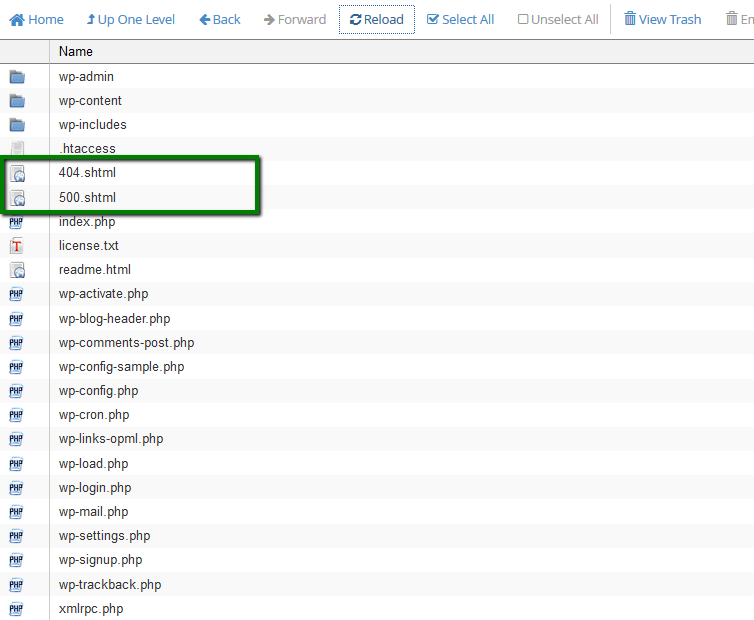
5. After that the .shtml file will be placed to the root directory of your website:
 6. In order to connect .shtml to your website, you need to add the corresponding rule to .htaccessfile.
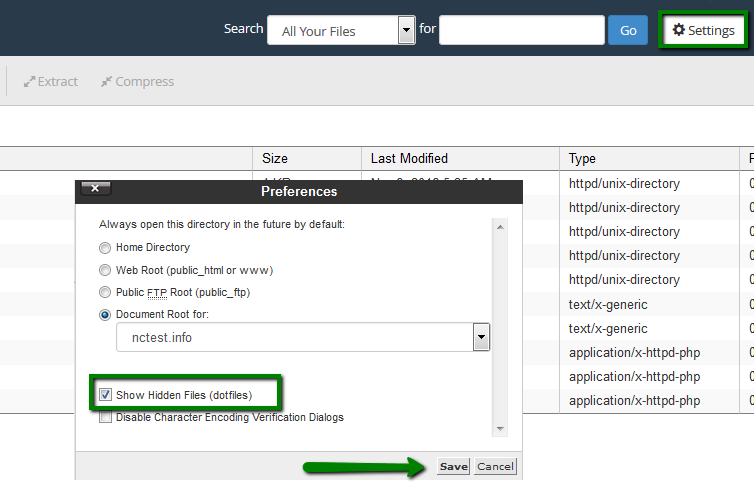
If you cannot locate .htaccess, enable Show Hidden files (dotfiles) option in Settings menu:
6. In order to connect .shtml to your website, you need to add the corresponding rule to .htaccessfile.
If you cannot locate .htaccess, enable Show Hidden files (dotfiles) option in Settings menu:
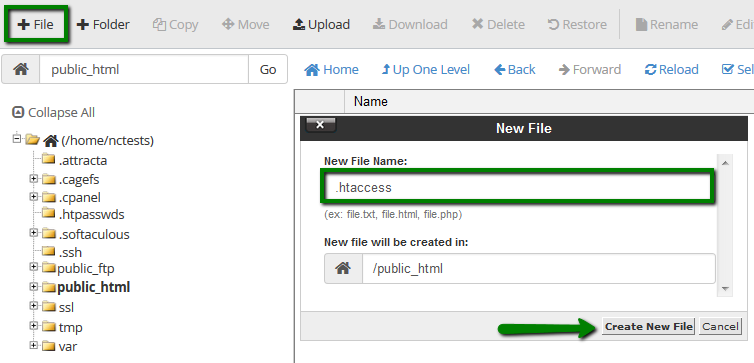
 If there is still no .htaccess file in your File manager, feel free to create a new one using File option:
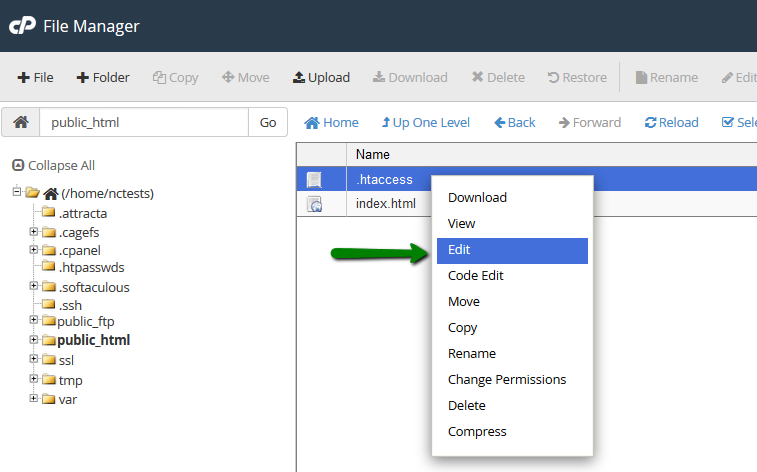
 7. After that right-click on the file and use Edit option:
 Add the following rule:
ErrorDocument 500 /500.shtml
Note, that error code and file name should be adjusted accordingly. For example, if you wish to connect 404.shtml, the rule should look like:
ErrorDocument 404 /404.shtml
Add the following rule:
ErrorDocument 500 /500.shtml
Note, that error code and file name should be adjusted accordingly. For example, if you wish to connect 404.shtml, the rule should look like:
ErrorDocument 404 /404.shtml
Article ID: 1945, Created: December 27, 2017 at 1:46 AM, Modified: December 27, 2017 at 1:46 AM